This guide is all about Mobile IPTV, focusing on the U.S. It’s for those who want to watch TV on their smartphones. It talks about IPTV on mobile, how it’s different from cable, and quick tips for better TV on the go.
It gives clear steps on picking apps for Android and iOS. It also shows how to optimize Wi-Fi, LTE, and 5G settings. Plus, it helps save mobile data and keeps streams secure and legal.
The guide uses well-known technologies like Wi-Fi standards and VPN services. It keeps advice easy to follow.
Expect quick, news-style tips to enhance your mobile entertainment. Later, it covers troubleshooting and advanced setup options. It also helps you choose the right streaming service for live TV on mobile.
Understanding Mobile IPTV and How It Works

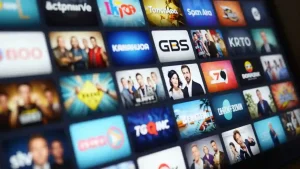
Internet protocol television, or IPTV, changes how we watch TV. It sends TV over the internet instead of traditional systems. This lets us watch live channels and on-demand videos on devices like phones and tablets.
What is internet protocol television and how it differs from traditional TV
IPTV sends TV as data streams, not like traditional broadcasts. Cable and satellite TV use fixed channels. IPTV offers more flexibility, letting us pause, rewind, and watch shows later.
Key components: IPTV app, streams, and the IPTV provider
An IPTV setup has three main parts. The provider gives the content and manages subscriptions. The streams carry video in formats like H.264 and AAC. The IPTV app plays these streams and handles user access.
How mobile networks and Wi‑Fi affect iptv streaming quality
The type of network affects how well IPTV streams. Mobile networks can be unreliable, while Wi-Fi is often better. If the network is poor, the stream might adjust to avoid buffering.
| Component | Role | Common Formats / Methods |
|---|---|---|
| IPTV provider | Source of channels, EPGs, account access | Subscription portals, token auth, EPG XML |
| IPTV app | Playback, playlist management, user interface | Android/iOS apps, M3U, TXT playlists, EPG import |
| Streams | Transport audio/video to the device | HLS, MPEG‑DASH, MPEG‑TS, H.264/HEVC, AAC/Opus |
| Networks | Delivery path that affects quality | Wi‑Fi (802.11ac/ax), 4G LTE, 5G, ISP throughput |
| Playback behavior | User experience factors | Adaptive bitrate, buffering, latency, EPG sync |
Choosing the Best IPTV App for Your Smartphone
Finding the right iptv app is key for watching TV on your phone. The right app affects how well you can watch, what channels you can see, and your privacy. Here are some important criteria, reliable app choices, and essential security features to look for before you install.

Criteria for selecting an iptv app: compatibility, codecs, and user interface
First, check if the app works on your phone, Android TV, and other devices. This ensures you can use it on all your gadgets.
Make sure the app supports the right codecs and container formats. This includes H.264, H.265/HEVC, AAC, and common containers. Good codec support means better streaming quality and less buffering.
Look for playlist support like M3U and Xtream Codes API. Also, check if it handles EPG and subtitles well. Features like Chromecast and AirPlay are great for streaming to a TV.
A good app should have a user-friendly interface. It should let you save favorites, search easily, and organize channels. Power users will appreciate features like playlist import/export, parental controls, and advanced sorting.
Trusted apps for Android and iOS: features and limitations
IPTV Smarters is available for both Android and iOS. It supports Xtream API and EPGs. However, App Store and Play Store rules can limit features or cause removals.
VLC Mobile supports a wide range of codecs and network streams. While it has basic EPG and channel management, it’s not as advanced as dedicated players.
TiviMate offers a polished UI for Android users. It’s only for Android and focuses on channel management for power users.
GSE Smart IPTV supports many formats across platforms, but iOS support can change with App Store rules. Native services like Hulu Live and YouTube TV provide licensed streaming and follow store rules closely.
On Android, sideloading lets you install apps not found in the Play Store. But, it comes with risks. Store rules affect what apps are available and how often they get updates.
Security and privacy features to look for in an iptv app
Choose apps that use HTTPS or secure stream transport. Look for token support and password-protected playlists to reduce unauthorized access risks.
Review the permissions the app asks for. Avoid apps that want access to your contacts, SMS, or unrelated data. A clear privacy policy and regular updates show a reputable developer.
Check the developer’s reputation and read user reviews. Use legitimate iptv provider accounts to avoid piracy and malware. Keep your login details safe and change passwords when you can.
Optimizing Network Settings for Smooth Live TV on Mobile
Getting reliable mobile live streaming tv starts with the right network setup. Small changes at the router and on your phone can cut buffering, lower latency, and keep your mobile iptv sessions stable. The tips below apply to home Wi‑Fi, public hotspots, and cellular connections.
How to prioritize bandwidth for mobile live streaming tv
Enable Quality of Service (QoS) on your router to give priority to your phone or the streaming service you use. Many consumer routers from ASUS, Netgear, and TP-Link include simple QoS profiles or device-priority options that place mobile tv traffic ahead of downloads.
Switch to the 5 GHz Wi‑Fi band when possible. That band reduces interference and typically delivers higher throughput for iptv streaming. Pick a less crowded channel by scanning nearby networks in the router admin or via apps like WiFi Analyzer.
On the smartphone, stop background sync, pause cloud backups, and restrict large app updates while watching. Those measures free bandwidth and improve playback for mobile iptv.
Tips for minimizing buffering on cellular and Wi‑Fi connections
Choose adaptive bitrate streaming inside the app so the stream adjusts to changing signal strength. When stationary, prefer Ethernet-backed Wi‑Fi or a wired gateway to the access point for the best stability.
Keep apps updated and enable hardware acceleration in the iptv app when available. Close other apps that use data and pause any active downloads or uploads before starting iptv streaming.
Test network speed with tools such as Speedtest to check download and latency before a major live event. For cellular, pick 5G or strong LTE service and avoid locations known for weak reception like basements or crowded venues.
Using VPNs and DNS tweaks to improve access and performance
VPNs can bypass geo‑blocks and reduce ISP throttling for some streaming service sessions. Select reputable providers with streaming-optimized servers such as ExpressVPN, NordVPN, or Private Internet Access to keep latency low.
Smart DNS or public resolvers like Cloudflare (1.1.1.1) and Google DNS (8.8.8.8) speed up DNS lookups and sometimes improve channel access without routing all traffic through a VPN. Remember that a full VPN tunnel can add latency and affect iptv streaming quality.
Confirm that using a VPN or Smart DNS does not violate the terms of your iptv provider or the streaming service. Legal and service restrictions vary by region and by provider.
Best Practices for Watching TV on Smartphone Without Excess Data Use
Streaming on your phone doesn’t have to use up all your data. Making a few changes can help you watch more while saving data. These tips work whether you use mobile iptv apps or official services to watch TV on the go.
Adjust stream quality
Choose SD over HD when using cellular data. SD uses about 0.7–1.5 GB per hour. HD uses 2–3 GB per hour. 4K uses even more.
Many apps have a data-saver mode. Enable it to limit data use. Use adaptive bitrate streaming to adjust quality based on signal strength.
Use offline and cached options
Download shows from services like Hulu and Peacock on Wi-Fi. YouTube TV has DVR features, but check your account. Some IPTV providers and apps let you cache or record shows for later viewing.
Monitor data consumption
Use iOS and Android data screens to set alerts and limits. Carrier apps show your plan’s usage. Tools like GlassWire on Android track app data use. For home Wi-Fi, monitor your router to see network traffic.
Practical settings to adopt
- Turn on Wi-Fi-only downloads to avoid data use on cellular.
- Disable autoplay to avoid accidental streaming.
- Limit background data for heavy apps to prevent hidden data use.
- Choose lower bitrate mobile iptv streams for watching on the go.
By following these steps, you can enjoy TV on your phone without worrying about data bills. Regular checks and smart defaults help keep streaming efficient. This way, you can use your phone as a portable TV without breaking the bank.
Security and Legal Considerations for IPTV Service on the Go
Mobile iptv offers great flexibility. But, it also comes with security and legal duties. To keep your device, account, and wallet safe, follow these simple steps when choosing an iptv service on the go.
How to verify a legitimate iptv provider and avoid piracy
First, check the provider’s website for clear licensing and rights info. Legit services show their licensing partners or agreements with networks. Look for apps in the Apple App Store or Google Play and partnerships with big names like Roku or Amazon Fire TV.
Read the Terms of Service and privacy policy before you sign up. Make sure they accept major credit cards or PayPal. Compare their channel lineup to the official networks to spot any issues.
Be cautious of low prices that seem too good to be true, anonymous sellers, no contact info, and no customer support. These signs often mean the service is breaking copyright laws and could put you at risk.
Protecting your device and account from threats while streaming
Use strong, unique passwords and enable two-factor authentication if you can. Keep your phone’s OS and apps updated to fix security holes.
Avoid installing unknown IPTV apps or APKs. They might have malware or spyware. Install mobile security apps from trusted sources if you think you’re in danger. Limit app permissions to only what you need.
Regulatory and copyright basics for users in the United States
Streaming copyrighted content without permission can lead to serious legal trouble in the U.S. Networks and rights holders work hard to protect their content.
Go for licensed services like Hulu + Live TV, Sling, or YouTube TV for consumer protection and clear content rights. Using verified iptv providers lowers your legal risk and lets you enjoy live and on-demand content safely.
By following these tips, you can enjoy iptv on the go while staying safe and legal.
Enhancing Viewing Experience: Mobile TV Channels and Interface Tips
Customizing your screen makes watching TV on your phone better. Most apps let you add favorites, change channel order, and group by genre or location. This saves time and puts your favorite shows first.
Begin by marking your favorite shows and creating categories like a TV guide. Use drag-and-drop to sort channels. You can also import or export M3U playlists to move lists between devices. These steps make finding shows quicker and keep your mobile TV organized.
Electronic program guides add context to streaming. They show schedules, episode details, and channel logos. Syncing EPG data keeps times right. Make sure the guide uses your time zone for accurate listings.
Subtitles help in loud places or when sound is low. Most apps support SRT and WebVTT formats. You can toggle captions, adjust size, and choose languages. Closed captions are great for noisy areas or for those who need them.
Connecting to bigger screens and speakers makes watching more flexible. You can cast to Chromecast, AirPlay, or Miracast. Casting lets you watch on your living room TV.
Bluetooth is good for private listening. Pairing with headphones or speakers improves sound quality. External controllers or gamepads help navigate long lists and detailed guides. But, DRM-protected streams might limit casting or resolution on external devices.
Here’s a quick guide to help you choose the best interface features.
| Feature | Benefit | Notes |
|---|---|---|
| Favorites & Custom Groups | Faster access to preferred mobile tv channels | Supports M3U import/export in many iptv app clients |
| EPG Syncing | Accurate program schedules and metadata | Use XMLTV or provider guides; verify time zone |
| Subtitle Support | Better comprehension in noisy settings | Common formats: SRT, WebVTT; enable in app settings |
| Casting to TV | Watch on a larger screen from your phone | Chromecast, AirPlay, Miracast; DRM may block some streams |
| Bluetooth Audio & Controllers | Private listening and easier navigation | Pair headphones or speakers; external controllers for menus |
Troubleshooting Common Issues with Portable IPTV Streaming
Portable IPTV streaming can fail for many small reasons. This guide shows quick checks and steps to fix common playback problems on phones and tablets. Use these tips to figure out if the issue is with the app, the stream, or the network.
Resolving playback errors and stream compatibility problems
First, update the IPTV app and your device OS. Clearing the app cache often fixes playback errors. Make sure the stream URL or playlist format is correct — many apps use M3U, while some channels use HLS.
Check if your phone supports the codec used in the stream. If it’s HEVC, it might not work on older phones. Try playing the stream in VLC or another media player to see if it’s the app or the stream. Error codes? Look up the app’s support documentation for fixes.
What to do when live streaming lags or disconnects
First, test your network speed and signal strength. Try switching to a lower bitrate stream to reduce buffering. Move closer to the Wi‑Fi router or toggle airplane mode to reset cellular connections.
Disable data saver modes or a VPN that might add latency. For persistent packet loss, reboot your router or contact your ISP. Restart the IPTV app and, if offered, switch CDN or server region inside the app to reduce live streaming lags.
When to contact your mobile tv provider versus the iptv service
If many apps or channels fail, the problem is likely with your carrier or ISP. Contact Verizon, AT&T, or T‑Mobile for network outages or throttling that affect mobile iptv. Keep notes on outages, speeds, and timestamps to help support teams.
If only one IPTV service shows problems, reach out to that provider with logs and exact times. For app-specific bugs, contact the app developer or check community forums for known fixes. Clear, timestamped evidence speeds resolution for both parties.
Advanced Tips for Power Users and Mobile Entertainment Enthusiasts
Power users want control, speed, and reliable playback with mobile iptv. This guide will show you how to set up playlists M3U, use automation tools, and save battery. These tips will make your streaming on phones and tablets smooth.
Setting up playlists, M3U files, and custom channel groups
M3U playlists are simple text lists that link channel names to stream URLs. Each entry has an #EXTINF line with metadata and the stream address. Use tags for country, language, and category to sort channels easily.
Organize channels by adding custom headers or creating separate playlist files for sports, news, and kids. Host playlists on an HTTP server for dynamic updates and syncing across devices. Always keep backups and use editors like Notepad++ on Windows or Textastic on iOS to avoid errors.
Using automation and third-party tools to manage streams
Automation apps make managing iptv apps easier. On Android, Tasker can switch Wi‑Fi, adjust screen brightness, or launch a playlist. On iOS, Shortcuts can open apps and toggle settings before playback.
For media management, consider middleware panels or solutions like Emby and Plex. They help organize recordings and handle transcoding. DVBLink can integrate local tuners. Always check compatibility and provider terms before using third-party tools.
Optimizing battery life while using the iptv app extensively
Battery life is crucial for long mobile entertainment sessions. Lower screen brightness and enable system battery saver modes. These modes should not slow down your network.
Prefer Wi‑Fi over cellular to save power. Close background apps and use wired headphones for more savings. Carry a compact power bank to extend your viewing time.
- Playlists M3U: tag metadata for fast search.
- Advanced IPTV: use middleware for recordings and transcoding.
- Mobile entertainment: favor Wi‑Fi and lower refresh rates.
- Mobile IPTV: automate common tasks with Tasker or Shortcuts.
- Streaming TV: host playlists on HTTP for live updates and sync.
Mobile IPTV: Choosing the Right Streaming Service for Your Needs
Choosing a streaming service for mobile use is all about what you need. Think about the channels, cost, device support, and live event watching. These factors help decide the best service for watching tv on the go.
Comparing subscription, pay‑per‑view, and free options
Subscription IPTV services like Hulu + Live TV, Sling, and YouTube TV offer licensed channels. They have polished apps, cloud DVR, and support for multiple streams at once. This is great for families.
Pay-per-view or transactional video-on-demand is best for single events. Sports fans might prefer buying a single event instead of a monthly plan.
Free iptv and ad-supported platforms like Pluto TV and Tubi offer cost-free channels and on-demand titles. They have ads, smaller channel selections, and sometimes regional limits.
Evaluating channel lineups, regional availability, and pricing
Check the official channel lists on provider sites for local news, regional sports, and specialty channels. Geo-restrictions and blackout rules can block content, even with a valid account.
Compare pricing: monthly fees, add-on packages, bundles, and promotional rates. Note cloud DVR caps, stream limits, and app support for iOS, Android, Roku, Fire TV, and smart TVs.
Trial accounts let you test an iptv service before committing. Use trials to check picture quality, channel presence, and ease of use on your phone or tablet.
Customer support, reliability, and review checks
Research uptime and speed through independent sources like CNET and Consumer Reports. Read user reviews in app stores to find out about outages, buffering, and reliability.
A good mobile tv provider has clear support channels: phone, chat, and email. Look for transparent refund and cancellation policies and documented service levels for paid plans.
For lesser-known iptv service providers, check community feedback on forums. Avoid vendors with unclear billing or frequent outages. Choose providers with consistent performance and responsive support.
Conclusion
Mobile IPTV lets U.S. viewers watch TV anywhere. It works best with a good app, a reliable service, and the right network settings. Look for apps with clear privacy, modern codecs, and an easy-to-use interface to avoid playback problems.
Begin by testing apps on Wi-Fi, then move to cellular with data-saving on. Use VPNs or DNS tweaks wisely and keep an eye on data and battery use. Try free trials from well-known streaming services to see what they offer before you subscribe.
Make sure to choose services that follow U.S. copyright laws. Keep your apps updated and follow provider news to protect your device and access to live TV on mobile. With these tips, mobile IPTV can be a great choice for watching TV at home or on the go.


Post Comment