This STBEMU quick guide is perfect for U.S. users wanting IPTV streaming. It explains STBEMU codes, how the emulator works, and the need for a valid portal or subscription. This is to avoid unauthorized streams.
The guide covers installing the STBEMU app on Android, Fire TV/Firestick, and Android TV. It shows where to find and enter portal URLs and MAC address codes. It also helps with verifying and fixing common setup and playback issues.
Security and legality are key. Use legitimate IPTV services and protect your MAC address. The guide also shares tips for updates, network settings, and basic troubleshooting. This helps users optimize playback and device registration.
This guide is for tech-savvy consumers and cord-cutters. It’s short and to the point. It moves from installation to activation, highlights common stb emulator codes, and points to further sections for deeper configuration and troubleshooting.
Overview of STBEMU and IPTV streaming
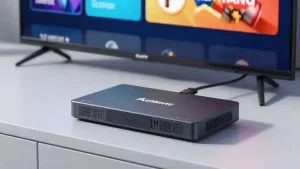
The STBEMU system makes Android devices work like set-top boxes. Users enter a provider URL, a MAC or activation code, and get access to channels, EPG, and VOD. It’s like using a Formuler or MAG box.

STBEMU mimics the interfaces used by IPTV providers. It handles authentication, gets channel streams, and shows the provider’s interface. This keeps the unique features of each provider.
What it does: it turns portal responses into menus, supports common codecs, and handles EPG and catch-up content. It’s great for those who need a real STB replacement.
How it connects: the app uses a portal URL and a device ID to connect. Some versions also support M3U or Xtream API, making it work with more providers.
Differences between STB emulator apps and native IPTV apps
STB emulator apps mimic the STB UI and authentication model. Native IPTV apps like TiviMate or IPTV Smarters accept M3U playlists or Xtream credentials. They have a different way of navigating.
Emulators need a portal URL and MAC, while native apps ask for login details or playlist links. Emulators show provider features like conditional access and channel categories in the expected layout. Native apps offer playlist flexibility and customizable layouts.
Native apps are better for users with multiple streams or who prefer modern navigation.
Common use cases for STBEMU on Android, Firestick, and smart TVs
One common use is replacing a MAG or Formuler box. A Fire TV Stick or Android TV device running the app can act as a drop-in client for the same portal.
Developers and tech-savvy users run STBEMU to test provider portals during migration. Providers can check channel mapping, EPG accuracy, and VOD access before giving out credentials.
Smart TV owners use the emulator to integrate portal features into the TV launcher. This gives access to catch-up and VOD content that some native IPTV apps do not fully support.
| Use Case | Typical Devices | Why STBEMU | Relevant Codes |
|---|---|---|---|
| Hardware replacement | Firestick, Android TV box | Recreates provider UI and access to pay-TV features | stbemu setup, stb emulator codes |
| Subscription migration | Smart TVs, Android phones | Test portal behavior and preserve EPG/VOD | iptv stbemu codes, stbemu app codes |
| Integrated launcher experience | Android TV, Hisense, Samsung Tizen (via wrappers) | Direct access to provider categories and catch-up | stbemu setup, iptv stbemu codes |
STBEMU codes: essential concepts and terminology

Knowing key terms helps set up faster and avoids mistakes. This guide covers portal links, device IDs, activation codes, and security terms. Read each part before entering values in the STBEMU interface.
Portal URL is the web address where the app gets channel lists, EPG, and VOD. It starts with http or https and includes a domain and path. Use the exact portal string to avoid connection and stream errors.
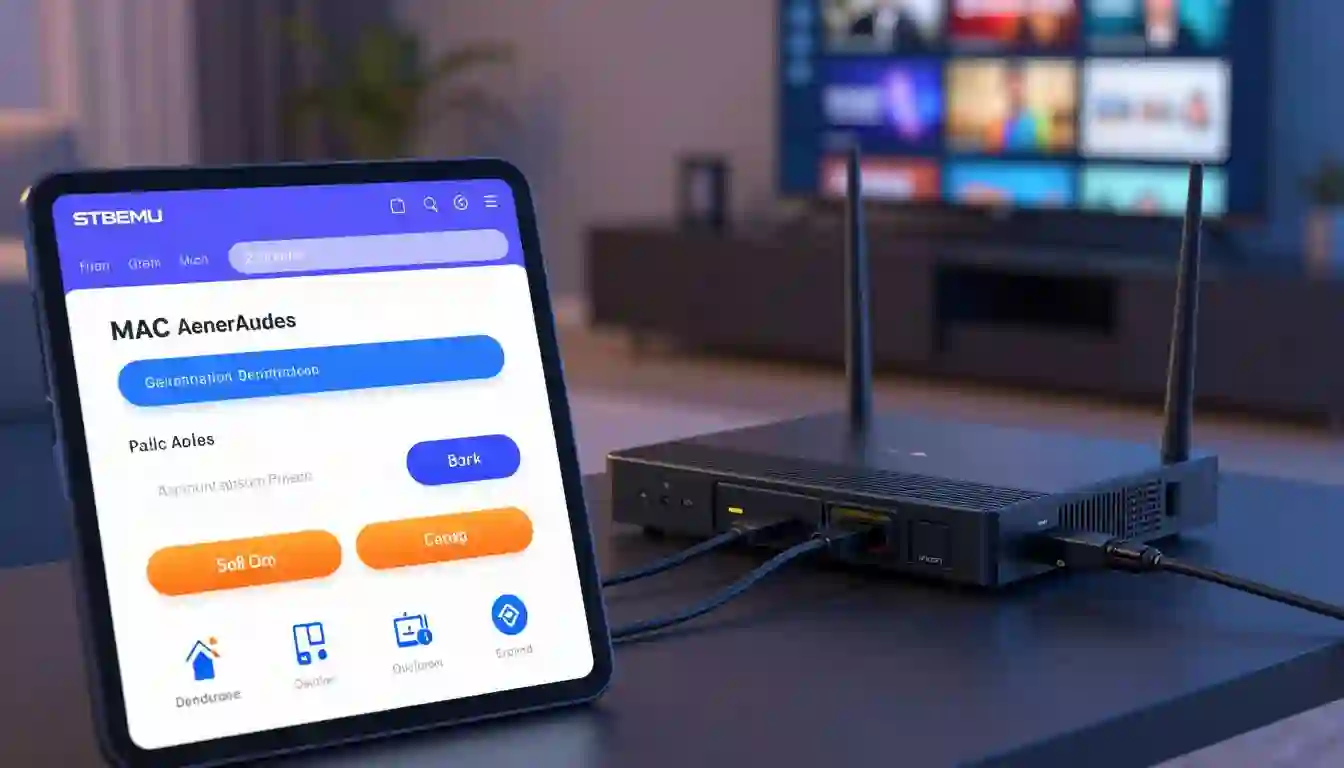
MAC address is shown in the STBEMU UI as a hardware ID. Providers use the stbemu mac address for authentication. You can register this value on the provider’s portal to authorize a device or link services to a single account.
Activation codes or PINs let providers enable service for a device. These codes can be numeric or alphanumeric and may work once or for a short trial period. Keep activation codes private to prevent unauthorized access.
“Codes” can mean different things. Portal codes point the app to a provider endpoint, while stbemu portal codes may include extra parameters. App-level unlock keys grant premium features. Providers issue stbemu iptv codes for subscriptions or trials. Know the difference before you enter any string.
Be careful with public lists and leaked stbemu iptv codes. They often stop working quickly and can breach terms of service. Using authorized channels preserves service reliability and legal compliance.
Authentication confirms a device identity, often via MAC or a username and password used in stbemu login. Authorization is the permission to view channels and VOD once authentication succeeds. Treat these as separate steps when troubleshooting.
Prefer providers that serve portals over HTTPS to reduce interception risk. Encryption protects credentials and stream manifests during transport. Verify the portal uses secure protocols before saving credentials in the app.
Protect sensitive details. Avoid posting your stbemu mac address, activation codes, or stbemu portal codes on public forums. Sharing these values can expose your subscription to misuse.
Understand legal responsibilities. Unauthorized access to paid streams may violate copyright law and provider terms. Choose licensed services and valid stbemu iptv codes to stay within legal and ethical boundaries.
How to download and install STBEMU app
Before you start, make sure your device is compatible and your network is stable. STBEMU works on Android phones, TV boxes, and Fire TV devices. It needs Android 7.0+ and 1.5–2 GB RAM for smooth streaming. A fast internet connection is key for uninterrupted streaming.
Here’s how to set up STBEMU correctly. Choose a trusted version to avoid problems. Make sure you pick the right APK for your device to avoid installation errors.
Supported devices and requirements
- Android phones and tablets: Android 5.0+ minimum; Android 7.0+ recommended for codecs.
- Android TV boxes and smart TVs that support Android apps: quad-core CPU preferred for 1080p.
- Amazon Firestick and Fire TV: sideload via Downloader or ADB; allow unknown sources for installation.
- Network: stable broadband and proper router settings for uninterrupted streams.
Step-by-step installation on Android
- Open Google Play and search for STBEMU or the official fork. If available, install and launch.
- If using an APK, enable Install unknown apps in Settings for your browser or file manager.
- Download the APK from a reputable source, check file size and checksum when provided, then tap to install.
- Grant storage and network permissions at first launch to complete the stbemu android codes configuration.
Step-by-step installation on Firestick
- On your Firestick, go to Settings > My Fire TV > Developer Options and enable Apps from Unknown Sources or allow the Downloader app.
- Install Downloader from the Amazon Appstore. Open Downloader and enter the APK URL to fetch the installer.
- Run the APK installer and, when complete, move STBEMU to the home screen via Apps & Channels > See All.
- If preferred, use ADB or a sideloading tool from a PC. Check permissions and launch to finish the stbemu setup.
Troubleshooting common installation errors
| Problem | Likely cause | Quick fix |
|---|---|---|
| App not installed | APK architecture mismatch or old Android version | Download correct ARM/ARM64 build or update Android and retry |
| Permission denied | Install unknown apps disabled or storage permission blocked | Enable unknown sources and grant storage/network permissions on launch |
| App missing from Firestick home | Newly installed apps are not pinned | Open Apps & Channels, select See All, move STBEMU to front |
| Corrupted APK | Incomplete download or tampered file | Redownload from a reputable source and verify checksum |
After installing, set up STBEMU by entering portal details and provider codes. Fire TV users should check if the app works well before using it. Proper setup helps avoid streaming problems.
STBEMU setup: initial configuration and onboarding
Start with a clear walkthrough so readers can finish the first-time setup without guesswork. The app shows fields for portal URL, MAC address, and device name. Learn the remote controls and input methods to speed up the process and reduce typos during stbemu settings changes.
Launching the app and first steps
Open STBemu and allow any permission prompts. The setup wizard or configuration screen presents presets and demo portals. Use up/down/OK/back keys to move through menus and the on-screen keyboard for precise portal entry. Good navigation avoids errors that block stbemu login or stream retrieval.
Entering portal URL and registering the device
Type the portal URL exactly as the provider gave it, including http or https and any trailing slash or path. Copy and paste when possible to avoid mistakes. Note the MAC address shown in the app and send it to the provider if activation is required. Some services request the MAC via their control panel or support email, or by entering stbemu setup codes in a registration form.
Saving configuration and running a test stream
Save your stbemu configuration and restart the app if prompted. The app should fetch channels, EPG, and VOD content. Select a live channel to confirm playback, check picture quality and audio sync, and open a VOD title to verify metadata.
If playback fails, re-check the portal URL spelling, confirm MAC registration with the provider, and verify account status. Try common troubleshooting steps from the settings menu, including clearing cache and reapplying stbemu pro codes or activation entries if required.
STBEMU mac address and portal URL: how to find and use them
First, open the STBEMU app and look at the app menu. The MAC-like identifier is usually found under Settings > Information or Device Info. It might be called MAC, STB MAC, or show as a hexadecimal string like 00:1A:79:XX:XX:XX.
Some STBEMU builds show the stbemu mac address on the welcome screen. You can also copy it to the clipboard. On Amazon Fire TV or Firestick, press the remote menu to find app info screens. Then, open STBEMU to see the device identifier.
Portal addresses are in web or IP formats. A typical stbemu portal url looks like https://provider-domain.com/portal or http://123.123.123.123:8080/portal. Providers might also use API endpoints or add query strings for regional routing.
To get the correct stbemu portal url, check your IPTV provider’s account page, setup email, or official support area. Don’t rely on random forum posts. Following verified provider instructions helps avoid misconfiguration and security issues.
Activation often needs the device MAC as a registration token. Enter the stbemu mac address on the provider’s activation page, support chat, or email. Providers link subscriptions to that MAC to control access and enforce limits.
For trial access, providers might give time-limited stbemu mac address codes tied to the MAC. If you move to a new device, ask the provider to update the registered MACs. Or, use your account dashboard to manage device slots to avoid hitting simultaneous-device limits.
If a provider gives stb emulator portal codes, enter the portal string in STBEMU’s portal field and confirm. Keep a record of registered MACs and the portal strings you use. Proper tracking makes migrations and support requests smoother.
Common STB emulator codes, updated lists and types
Knowing how codes work makes setting up and fixing issues easier. This guide explains common code types, where to find updates, and how to know if a code is free, trial, or paid. Each section offers specific advice.
Portal codes are the setup strings or URLs your app uses to connect to a provider’s middleware. Correct stbemu portal codes link the emulator to channels, EPG, and user permissions. Wrong portal URLs can cause issues like authentication failures or empty channel lists.
App codes are like serials or license keys in some versions. Legit versions from the Google Play Store or Amazon Appstore rarely need unlock codes. Be careful with stbemu app codes from untrusted sites; they might harm your device or void support.
PIN codes are for parental controls or activation PINs from providers. Providers give stbemu pin codes to limit channels, confirm pairings, or manage access. Keep PINs secret and update them through your provider portal when you can.
Where to find updated lists
- Official provider docs and your account panel show current stbemu portal codes and activation info.
- Support emails and authorized reseller portals offer valid codes and expiry info.
- Public forums and shared lists sometimes have free stbemu codes, but these are often short-lived or blocked by providers.
What to watch for
- Phishing attempts that look like provider domains. Always check sender addresses before using any new portal string.
- Expired or recycled MAC-based activations that stop working after a short time.
- Third-party offers of unlimited access without billing. These often violate terms and risk service disruption.
How to verify whether a code is free, trial, or paid
- Check your provider account page for labels like “7-day trial” or an expiry timestamp after activation.
- Try activation and look at the provider portal for messages about trial length or paid subscription details.
- Confirm billing by checking linked payment methods and subscription history in your provider account.
When using free stbemu codes, treat them as temporary. Use only verified stbemu portal codes from trusted sources for stable service. For licensed features, ask for stbemu app codes from the vendor directly. Keep stbemu pin codes secure to protect your account.
Troubleshooting STBEMU configuration and playback issues
When streams fail or the app won’t authenticate, a calm, methodical approach yields the fastest fix. Start by checking basic items, then move to logs and deeper settings. Keep notes of each change to restore working configurations if needed.
Fix login and authentication failures by verifying the portal address and account status with the service provider. Confirm the device MAC is registered in the provider control panel. Re-enter credentials, clear cached login data in the app, and restart the device if you see 401 or 403 style errors. If available, enable debug or view app logs to capture authentication messages before contacting support.
To resolve common playback problems, test network bandwidth and lower stream quality for a quick stbemu buffering fix. Switch to adaptive or lower-bitrate profiles where available. If channels report “no signal” or “channel not available,” confirm the provider playlist includes them and check for regional restrictions or missing ports in the provider feed.
Codec errors often block playback on older hardware. Enable hardware acceleration on Android or Fire TV when possible. Ensure the device OS supports H.264 and H.265/HEVC for 4K content. Use devices with adequate CPU and GPU power to prevent decoding failures and reduce buffering.
Resetting settings and clearing cache can cure corrupted data that breaks portal access or playback. Use the in-app Clear Cache, Reset Settings, or Remove Portal options, then re-enter the portal URL and MAC. Back up any custom stbemu settings before you reset to avoid losing saved credentials or layouts.
If reapplying stbemu portl codes after a reset, enter the portal URL exactly as provided by the vendor and re-register the MAC if required. After changes, restart the app and run a short stream test to confirm the configuration took effect. Reinstall the app if issues persist or try an alternative build recommended by the provider.
Use a checklist to speed up fixes and avoid missed steps:
- Verify portal URL accuracy and account status.
- Confirm MAC registration with the provider.
- Clear cache and reset settings before reapplying portal codes.
- Lower stream quality or enable adaptive modes for buffering.
- Enable hardware acceleration to address codec problems.
| Problem | Quick Check | Action |
|---|---|---|
| Login/auth failure | Portal URL, MAC registered, account active | Clear cached credentials, re-enter details, view logs, contact provider |
| Buffering | Network speed, stream resolution | Apply stbemu buffering fix: lower bitrate, enable adaptive streaming, test wired connection |
| Channel errors | Playlist contains channel, regional rules | Confirm provider list, test alternate channel, reapply stbemu portl codes |
| Codec/decoding | Device hardware, OS codec support | Enable hardware acceleration, update OS, use capable device |
| Corrupted app data | Unexpected crashes, failed updates | Use Clear Cache or Reset Settings, then restore stbemu configuration and test |
Best practices for secure STBEMU use and optimization
Keep your setup up to date to avoid playback issues and security risks. Update Android OS, Amazon Fire TV firmware, and the STBEMU app when new patches are released. Also, watch for updates from your provider to keep your stbemu configuration and settings working well.
Keep software fresh
Update your device and STBEMU app as soon as you can. An updated app supports better codecs and reduces errors. Before making big changes, check for firmware updates for brands like Samsung Tizen, LG webOS, or Fire OS.
Network tuning for stable streams
For the best IPTV experience, use a wired Ethernet connection. If Wi-Fi is needed, choose the 5 GHz band and keep the signal strong. Set bandwidth targets for different video qualities: 3–5 Mbps for SD, 5–8 Mbps for 720p, 15–25 Mbps for 1080p, and 25–50+ Mbps for 4K. Use router QoS to prioritize streaming and avoid double NAT issues.
Optimize STBEMU settings
Adjust buffer size, video codec preference, and player selection in the app. A small buffer can help reduce rebuffering on unstable connections. Keep a record of changes so you can easily go back if needed.
Protect account details and device IDs
Only use portal URLs and activation strings from your paid provider. Never enter unknown links into the app. Treat your MAC address as private and enable stbemu mac address protection if supported. Sharing MACs publicly can lead to subscription hijacking.
Careful use of VPNs and third-party tools
A reputable VPN can protect your network privacy, but test for added latency and buffering. Make sure your provider allows VPNs to avoid TOS violations. Avoid unofficial code lists and use verified best stbemu codes from your service to prevent service loss.
Routine checks and recovery steps
Keep a simple checklist: confirm firmware, verify portal URL, test bandwidth, and reapply known good stbemu iptv codes after updates. If playback fails, clear cache, reset to known working settings, and re-enter provider credentials to restore service quickly.
Conclusion
STBEMU is a useful tool for making Android and Fire TV devices work like set-top boxes. It lets users access IPTV services easily with a familiar interface. Knowing how to use STBEMU codes and portal strings makes setting it up quicker and reduces problems.
To set up STBEMU smoothly, first install the app on a compatible device. Then, find and enter the right portal URL and MAC address. Next, sign up with a trusted provider and test playback. Keep a list of STB emulator codes ready for quick use. If channels won’t load, try clearing cache or reapplying portal settings.
Make sure to get STBEMU portal codes and activation data from trusted sources. Keep your app and firmware up to date. Also, ensure your home network has steady bandwidth. If issues continue, contact your IPTV provider’s support or check their documentation. Always follow the latest provider instructions and code lists to keep streaming reliable and secure.



Post Comment